Blog
New feature: Comments directly in the schedule
Add comments directly in the Royal Schedule schedule. Collaborate more easily, comment by week or across all weeks, and keep key details organized.
3/31/2026
We are happy to introduce a new feature in Royal Schedule that makes it easier to collaborate and keep track of important scheduling details: comments directly in the schedule.
Enable comments
To start using the feature, comments first need to be enabled directly in the schedule:
- Go to Schedule
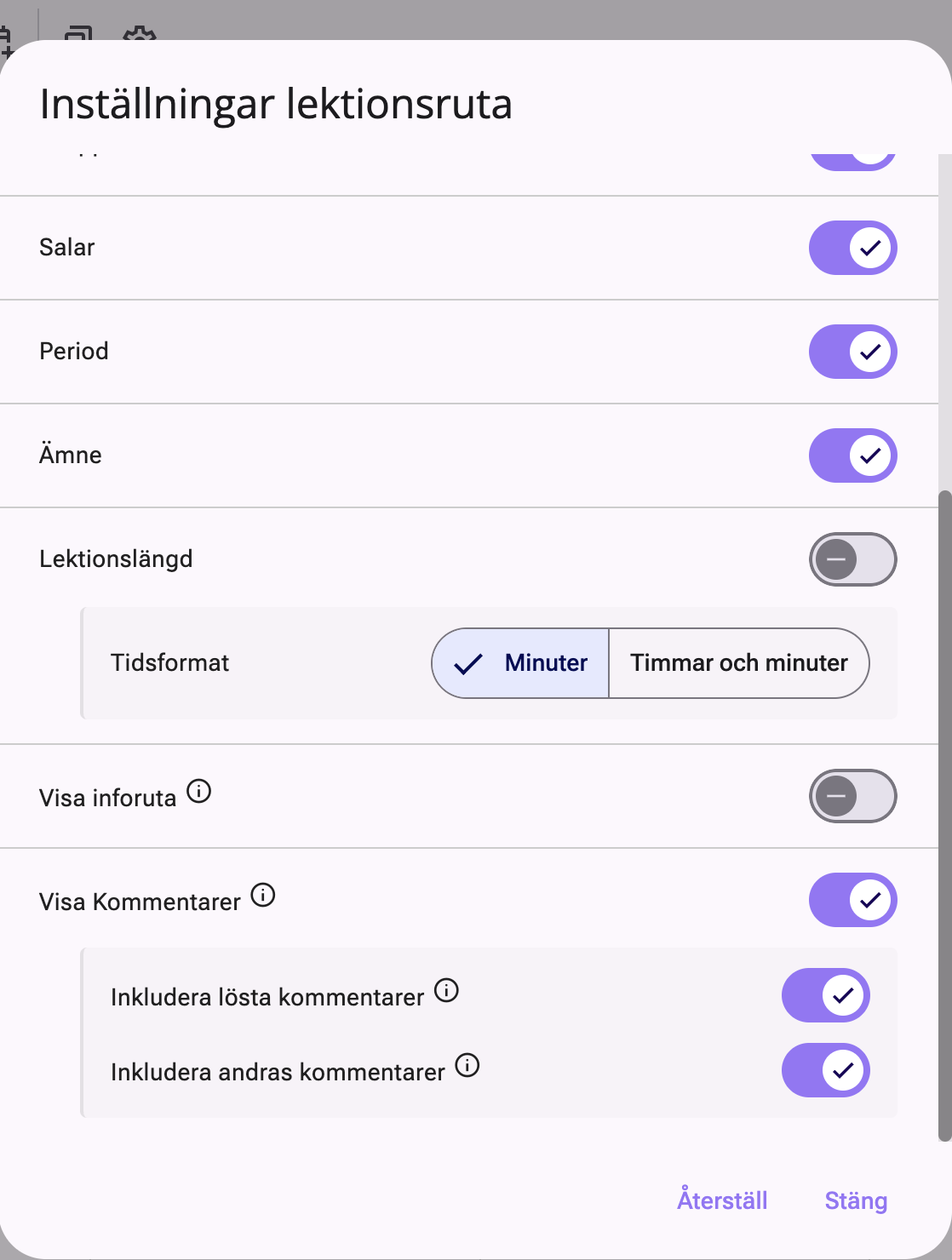
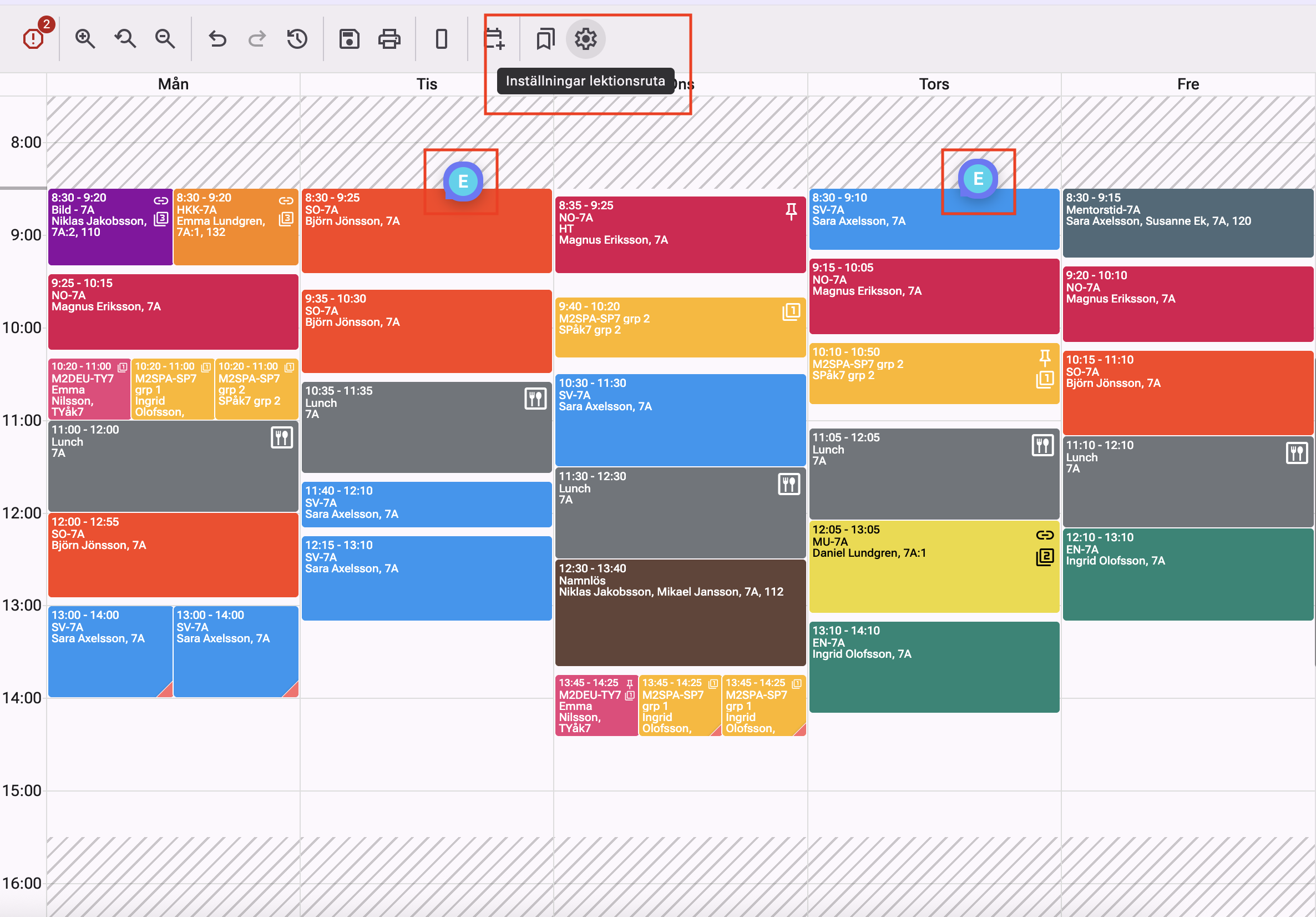
- Click the lesson settings via the gear icon in the schedule view
- Scroll down to Show comments and enable the feature
- Choose how resolved comments should be handled
- Choose whether you want to see other users' comments in the schedule
How it works
When the feature is enabled, you can:
- Right-click a lesson or event and add a comment
- Write notes, such as reminders or internal instructions
- See a clear marker in the schedule showing where comments exist
The comments are flexible and easy to work with. You can:
- Move them when needed
- Reply to comments if several people are collaborating
- Mark them as resolved when they have been handled
Comment by week or across the entire schedule
You can choose to:
- Add comments that apply to all weeks
- Comment on a specific week, for example for temporary changes
This makes it easy to separate long-term planning from week-specific adjustments.
Full control and secure handling
The comments:
- Are only visible inside the system
- Are not shared externally through APIs
- Can easily be hidden or turned off when needed
Better collaboration in scheduling
The new feature is useful for teams working together in the schedule. It makes it easier to communicate directly in the tool and ensures that important information is not lost.
See the images below for examples of how comments can look in the schedule and where you enable the feature.